ChatGPT with RemotePC MCP
RemotePC MCP connects your RemotePC account with AI assistants and applications using the open Model Context Protocol (MCP) standard. It enables compatible AI clients to securely access supported RemotePC capabilities through standardized tools, without requiring custom integrations or scripts. This guide explains how to connect ChatGPT with RemotePC MCP.
Prerequisites
- An active RemotePC account.
- Access to a ChatGPT account.
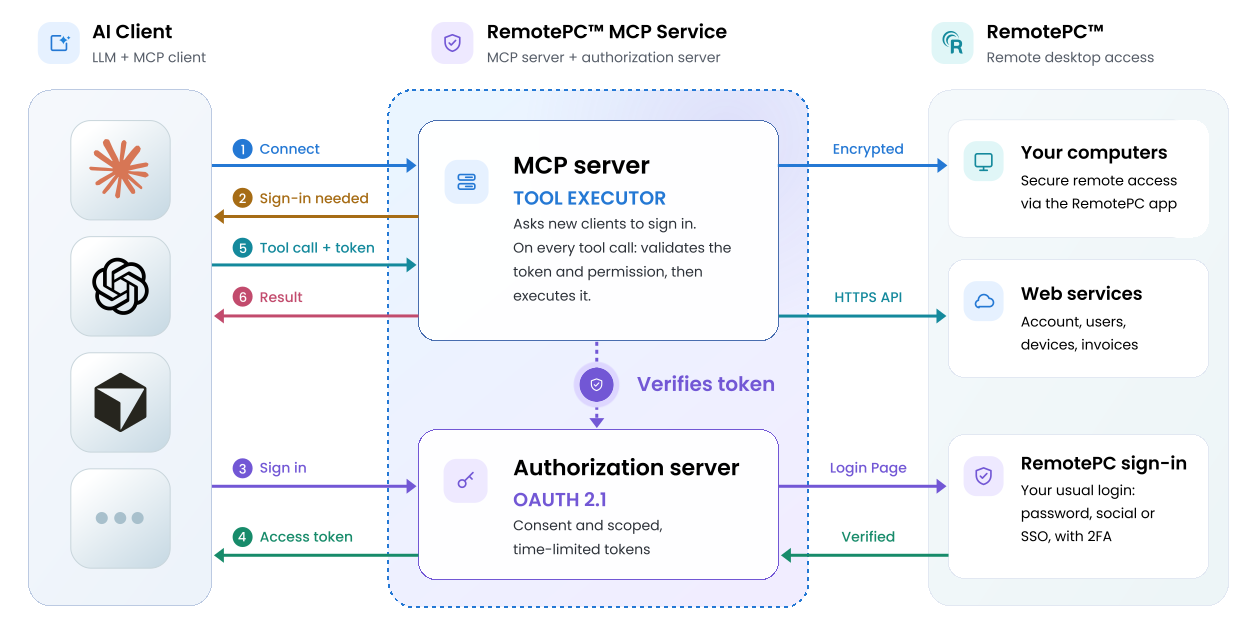
Reference Architecture
Configure ChatGPT with RemotePC MCP
- Sign in to ChatGPT.
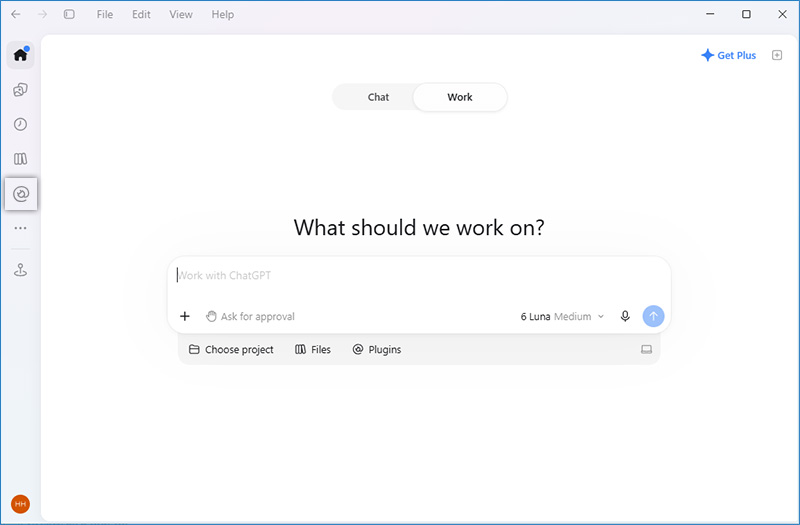
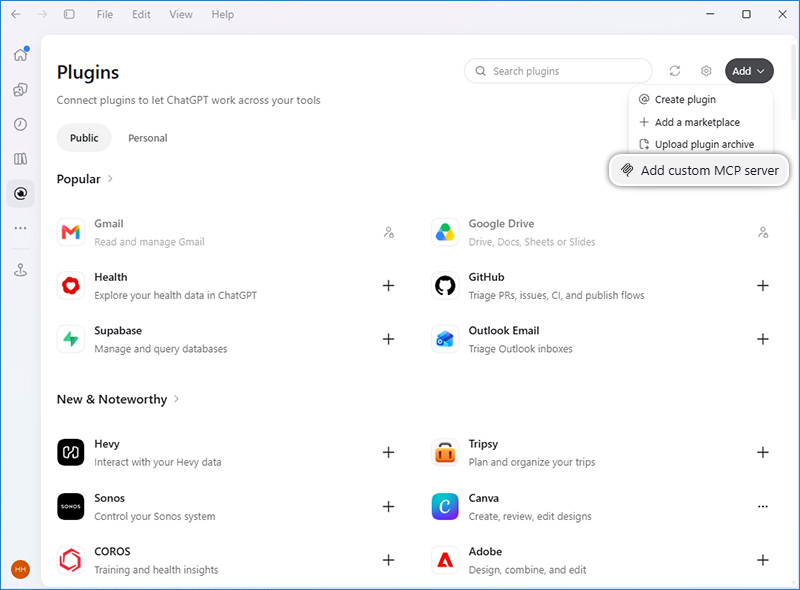
- Go to Plugins and click +.
- Select Add custom MCP server.
-
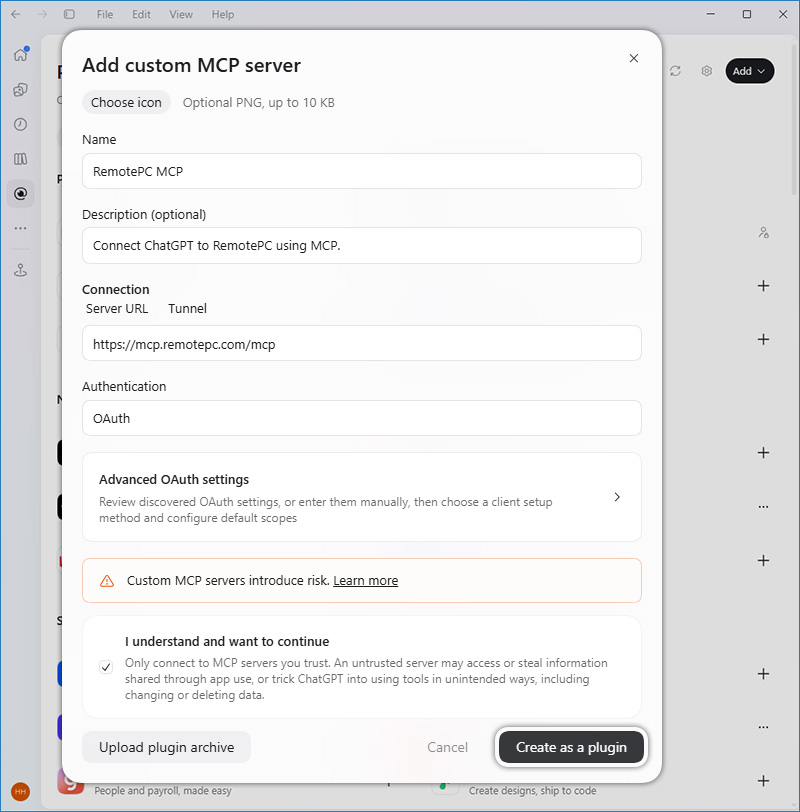
In the plugin creation screen, enter the following details:
- Name: RemotePC MCP
- Description: Connect ChatGPT to RemotePC using MCP.
- Server URL: https://mcp.remotepc.com/mcp
- Authentication: OAuth
- Review the risk warning and select I understand and want to continue.
- Click Create as a plugin.
- Install the RemotePC MCP plugin from your personal plugins.
- Open a new chat and select RemotePC MCP from the plugin list.
- When prompted, sign in to your RemotePC account.
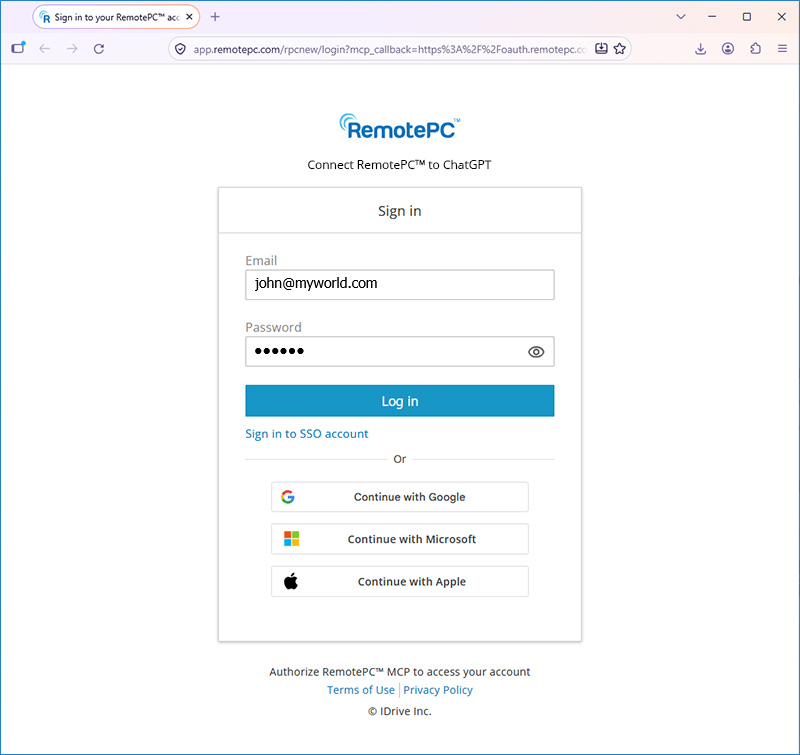
- On the RemotePC authorization page, review the requested access.
- In Session Settings, set the session timeout and access permission.
- Click Authorize Access.
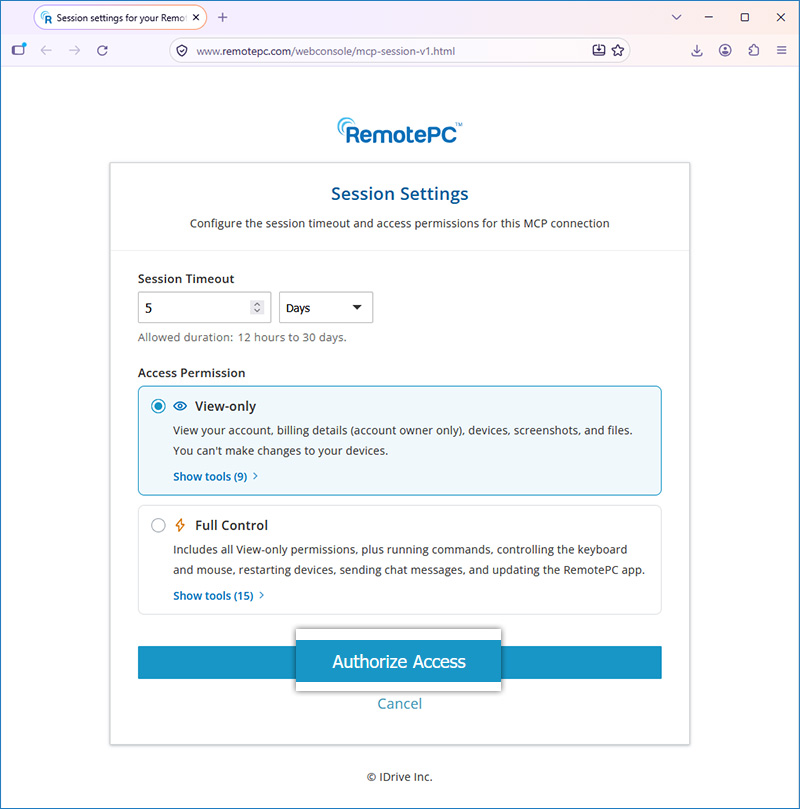
You have successfully connected your ChatGPT account to RemotePC MCP. You can test the connection by entering the prompt ‘Show my RemotePC devices’. Your RemotePC devices will be displayed. If the RemotePC MCP tools are not available, refresh ChatGPT and try again.